 Loyaltri
Probation Management
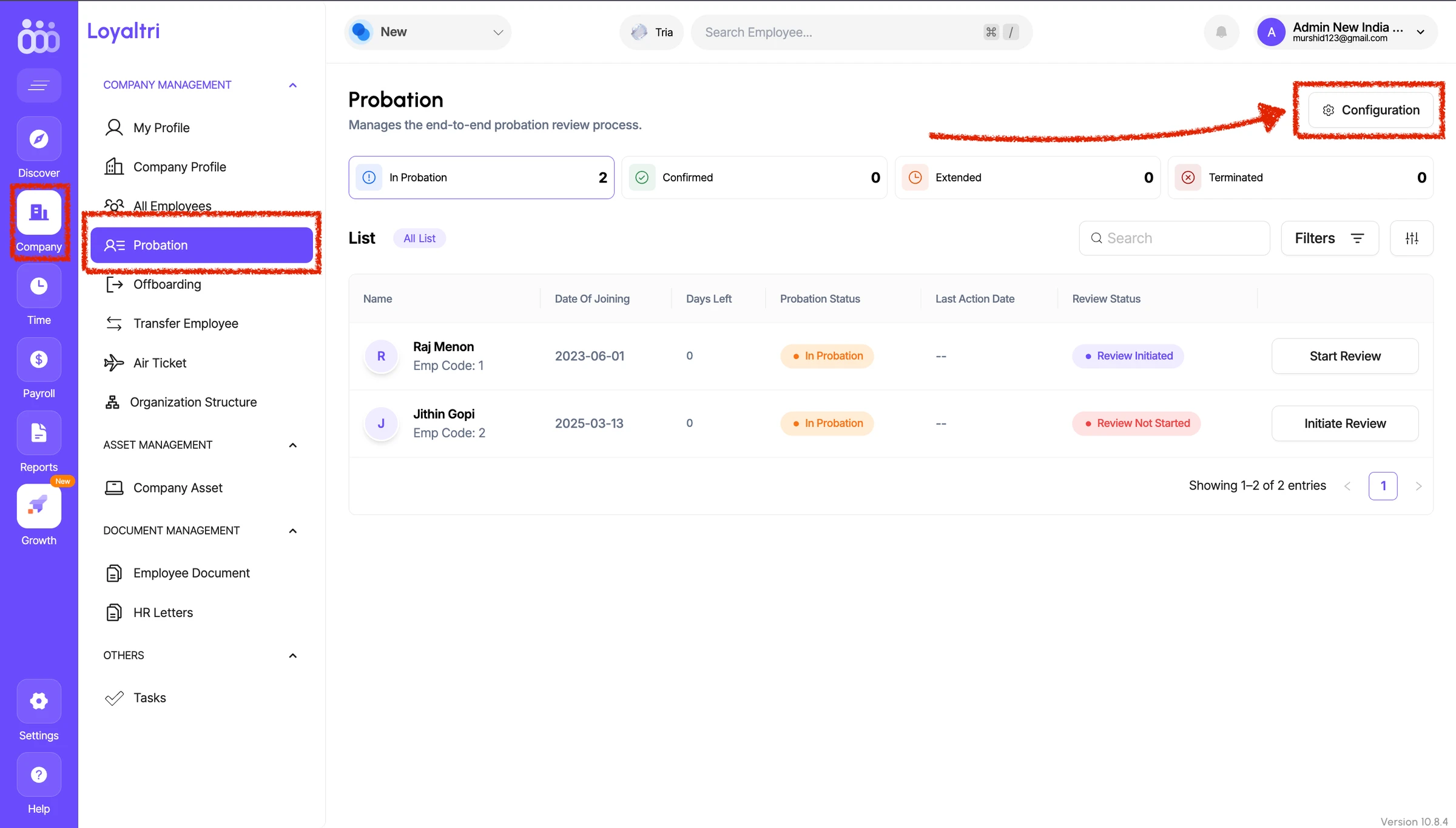
Loyaltri now supports a structured probation management process covering probation initiation, manager evaluation, recommendations, final HR approval, and employee communication.
The organisation can decide how probation should be handled at the company level:
- Auto Approval: The existing automatic probation process will continue based on the configured rules.
- Manual Approval: The complete Probation Management workflow will be activated, requiring HR initiation, manager review, and final approval.
For organisations that want to use the probation evaluation and approval workflow, the probation process must be configured as Manual Approval.
Initial Configuration
Before using Probation Management, the organisation must complete the following configurations.
1. Configure the Probation Method
The company’s probation handling method must be selected from the applicable probation settings.
To use the full evaluation and approval workflow, select Manual Approval.
2. Configure Probation Evaluation Criteria
Under the Probation Configuration, the organisation can define the evaluation criteria or KPIs that managers must use while reviewing employees.
Examples may include:
- Job knowledge
- Quality of work
- Productivity
- Attendance and punctuality
- Communication
- Behaviour and teamwork
- Adaptability
- Overall performance
The organisation can configure the criteria based on its own probation evaluation requirements.
3. Enable User Privileges
The required probation privileges must be enabled from Settings → User Privilege.
The following three privileges are available:
- Initiate Privilege: Allows the user to initiate an employee’s probation review
- Review Privilege: Allows the manager or reviewer to evaluate the employee and provide a recommendation
- Approval Privilege: Allows the authorised HR user to take the final probation decision
These privileges can be assigned to the relevant HR users, reporting managers, or authorised approvers based on the organisation’s process.
Probation Approval Flow
Step 1: HR Initiates the Probation Review
When an employee’s probation end date approaches, the authorised HR user initiates the probation process by clicking the Initiate button.
No additional application is required from the employee.
Once the review is initiated, the applicable manager or reviewer will receive a notification.
Step 2: Manager Evaluates the Employee
The reporting manager reviews the employee based on the configured probation KPIs and evaluation criteria.
After completing the evaluation, the manager can recommend one of the following actions:
- Confirm the employee
- Extend the probation period
- Terminate the employee
If multiple reviewers or approval levels are configured, the review will move through the applicable workflow.
Step 3: Final HR Approval
Once all manager evaluations are completed, the probation review returns to HR for the final decision.
The authorised HR user can take one of the following final actions:
- Confirm: Successfully complete the employee’s probation and confirm the employment
- Extend: Extend the probation period for a specified duration
- Terminate: End the employee’s employment based on the probation outcome
The final HR action will update the employee’s probation status accordingly.
Step 4: Employee Notification
Once the final action is completed, the employee will receive an email notification informing them about the probation outcome.
The notification will be sent based on whether the employee has been:
- Confirmed
- Given a probation extension
- Terminated
How was this update?
Pick the face that best matches your reaction